Run from GAMS Studio
Direct access to the model files, solver logs, and intermediate outputs. Suited for inspecting equations, tracing errors, and testing model changes.
Steps
-
Open GAMS Studio.
-
Open
main.gms: go to File > Open in New Group, navigate to your EPM folder, and selectmain.gms. -
Make sure
main.gmsis set as the main file (green triangle on its tab). If not, right-click it and choose Set as Main File.
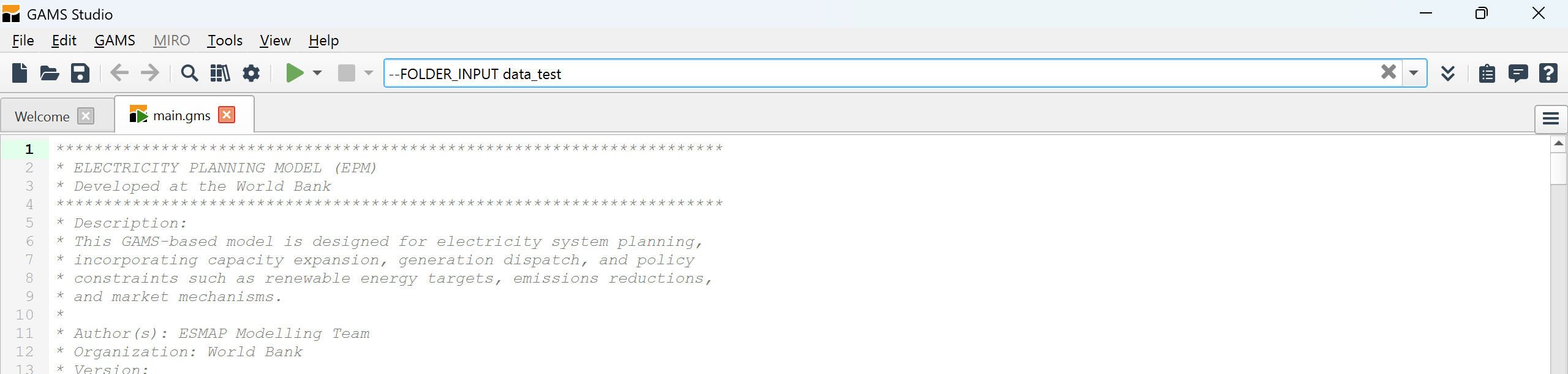
-
In the Task Bar at the top, specify your arguments. All arguments must be prefixed with
--.FOLDER_INPUTis the only required argument:All other arguments are optional and fall back to the defaults listed below.
-
Click Compile/Run.
-
Check the Process Log for errors. If successful,
epmresults.gdxwill appear in the project directory.
Default arguments
If not specified on the command line, these files fall back to their defaults:
| Argument | Default | Description |
|---|---|---|
BASE_FILE |
base.gms |
Core model file (included only on fresh runs) |
REPORT_FILE |
generate_report.gms |
Report generation script |
READER_FILE |
input_readers.gms |
Input reading script |
VERIFICATION_FILE |
input_verification.gms |
Input verification script |
TREATMENT_FILE |
input_treatment.gms |
Input preprocessing script |
DEMAND_FILE |
generate_demand.gms |
Demand generation script |
TRACE |
0 |
Set to 1 for detailed input reading logs |